Keep up with VYL's Updates

Showing posts with label POPP v1. Show all posts

9.09.2008

POP Suite Part 5: Email Organization

ToDo.gif

Welcome back to the Productivity and Organizational Progress (POP) Suite. Today we're talking about Email Organization.

Here's my two cents on email productivity.

THE source for clarity on [Gmail] IMAP bugginess.

When add the [Gmail] Pretext to my Gmail account only certain gmail folders pop up:
All mail
Deleted messages
Spam
Starred
and One other folder

When I remove that, my massively annoying byzantine infrstructure of google labels pops up. What the hell is going on?

Well, any "prefix you use" [Gmail] will be the only folders that Mac Mail loads. So if you have 7 folders called [ABC]/Folder1 [ABC]/Folder2, etc. Mac Mail will only load those seven folders.

Google is so infuriatingly buggy, I can't even begin to describe how much its IMAP features suck.

So many 3rd-party programs have done that. Even open office (neooffice is slow as fracking hell). So I've made an ultimatum with myself. I only use Apple software. Period! I'll likely switch to mobile me within a few months because that looks so smooth and inecredible.

I'm talking EVERYTHING mac. Sure, I'll use quicken, and one or two other third parties, but everything else: apple. Why not? It's complete, it works great, its's designed for yoru ocmputer by the company that designed hte hardware, too. It's smoother to keep the kinds of software congruent and do you actually "need' all of those crap, hack third-party programs? Definitely not. Most certainly not. They're all impulse buys. Anything that you can do with apple software is all that you need. They have a built in xcode sdk and script editor for applescript for crying out loud! They give you the tools and the freedom to create your own apps! Signing up for non-apple email, apps, upgrades, etc. before was just something I had an aversion to, (Being a devout apple fan), now signing up for or using 3rd party programs has ceased being an aversion and has simply become a massive source of pain and sheer frustration. I hate non-apple apps. I frankly hate tehnology right now I ahve spent so much time debugging and trying to get things to work, but if I can take a few small doses of technology, I'll only settle for Apple.

I just got fed up reading reviews on Macword because what use is a review from a really awesome program that I can't afford in the first place?!!! Untill I can actually afford this software, reading about it seems kind of boring.

I'm seriously at the point where I'm so sick of these little installations from xyz software that wreak disgusting, foul, putrid discombobulated havoc and disgusting clutterfests on my life. One of those, most undoubtedly is google. I hate google. Their IMAP configurations wiht mail.app are so sickenling buggy, it's basically like setting up and debugging your own email server in the beginning ages of the internet. It's causes me so much painful frustration for hundreds and hundreds of hours of my life. I didn't even realize that google mail was the cause of it. I had a couple gmail accounts and I finally "settled" in one

Email Folders
We've got @Later, @Noisy, @Archive, @Action, and @Respondto. Now honestly those are a bit redundant. I like the A, B, C method of prioritizing all those folders, meaning
C
Noisy
Laters
B
Respondto
A
Action


Because A, B, and C reflect the amount of mental energy you should put towards a response. If you don't want to right a long response, drop the message in C! C messages should be limited to 5 lines maximum for each response. NO MORE! Stickign to that methodology will give you so much freedom in life because instead of seeing dozens of emails where some might involve actions or long or short responses, if you have collected 10 emails in "C" just dash out responses to those and it should take you 10 minutes, tops!


Rules about rules!


Key word to the wise regarding Google Filters or Mail.app Rules. Use them sparingly and ONLY if you have absolute 100% assurance that the rule will get highly utilized. think of the filters/rules as large conduits -- the main "plumbing" if you will, if your email. On my gmail account at one time I had over 30 filters -- Thirty! That just creates (trust me. I know from experience) a fragile, and convoluted email routing system. I think rules and filters should max out around 10, with a few strange exceptions. Good reliable filters that i always use are routing my Facbook and Myspace emails into @LATER/C and @LATER/Myspace, respectively. I get a lot of those updates Consistently -- the consistency is the key parameter for making a rule --and this way they're all consolidated in a seperate folder that I peruse leisurely, "@Later". Consistency is key. At one point, I set up all messages from certain friends to be automatically labelled as "friend". That's cool. Except that when you do that with 10-20 email address and then those people write irregularly, you've got 10-20 extra filters/rules clogging your "email plumbing" which just adds ot confusion, instead of subtracts it. Bottom-line: Rules/Filters should have a high threshold of criteria before they're applied:
1. Regularity -- You must Consistently Receive certain type of email (like Social-networking updates)
2. Consolidation -- Would prefer to have this messages redirected out of the inbox in a seperate folder
3. Decreases Confusion & Clutter -- Adding said filter/rule decreases confusion, instead of adds to it.

With the "Auto-labelling-as-friend" filter, I'd have a friend email me every month or so and "miss" the email because it popped up in "Freinds" instead of inbox. All emails that are irregular (meaning that it's up to the recepient, instead of some auto-responding program like Facebook notifications) should be unfiltered and go to your inbox for you to process directly. Here's an example using all three criteria: Filtering newsletters rerouted to @LATER or @LATER/Newsletters fits reflects "regularity" because you'll recieve those like clockwork weekly or monthly or whatever the scheduled frequency was; "Consolidation" fits because why would you want to read a 4-page newsletter in the midst of processing your main email. You want those in the "@LATER" folder, consolidated and out of the way to optionally read after you've handled stuff that could potentially "blow up". Finally you can check of "Decreases confusion and clutter" because seeing a swelling "Inbox" can cause alarm but if all of those are "Newsletters" you'll just see a swelling "@LATER/NEwsletters" which decreases confusion and panic!

Another example: Bank and Financial NOtices. Any important alerts that you want to receive immediately should, obviously not be filtered, but your weekly or monthly bank statement that sends via email, as long as it can't possibly contain something that could "blow up" or an action coudl be routed to @Later or @Later/Finances, for your Liesure perusal of your financial emails.

On the Nature Of @LATER Emails: Stopping the Dam
It's important to note that all emails directed to @LATER should be emails that could potentially go unread for months or years and nothing "would be missed". Anything important or tied to an action should never be filtered. This is why you don't filter friend's emails because they could have an action buried in there (the rare exception is the loving aunt who only always sends just "Checking in" emails). Don't Assign a rule to something you need to see in your inbox! So given that everything auto-routing to @Later or its sub-folders is just "Leisure reading", the question arises "If I don't Need to read that stuff, why do I even subscribe to it?" Answers will vary, but it's immensely valuable to just plug the leak and simply unsubscribe to junky newsletters or updates you rarely read in the first place. Redirecting All newsletters and automated notifications to @LATER is half the solution. The next solution is eliminating via unsubscribing the junk @LATErs (i.e. the junky newsletters or notifications that you dont' care about in the first place). This is just stopping the dam intstead of redirecting the fluidity of your flow to another folder. If what accumulates in @LATer is primarily "sewage" in other words, eliminate the sewage from the source and stop just "redirecting it around" for goodness sake!

So to conclude we've talked about the "Rules for Rules" or the Three criteria of Regularity, Consolidation, and Decreasing Confusing for assinging a rule and we've talked about just eliminating and being SELECTIVE about the @LATER emails you recieve in the first place.

Those to excellent solutions is your calling card to the delightful and enlightening experience of lightning fast inbox-zero anti-clutter email.

Here's the down-low summary on how to work email with the most simplistic methods possibly (i'm drawing from merlinn mann, David allen, some macworld gurus and other productivity experts and my own experience).

I've detailed the horros of the overly-byzantine system above.


Possible Emails -- Email_IDEAS
Responses
This folder should contain REsponses that you foresee as plausible. When I email. I typically already know what a person will say in response so This way I have the responding part covered. Alternatively, which is the best to do, this should be in Drafts and labeled a different color indicating that it's a "canned response" to a pre-written email. When you know how people think, you already know the type of response you expect to get, so just write your response to that future response then so you don't have ot worry about thinking about in the future.

Edit GMail Filters -- remove most
Ensure I'm aware of what emails are skipping inbox.
AFter some consistency has been established with these folders add in mail-acton and mailtags features ONLY if those programs are non-trial
READ about Mail-acton
Read about Mail-Tags
Get Mail-acton to work
Get a license for it for free or buy it before fully using it
Learn how it works and create some useful rules
Set up mailtags
Elminate all archiving folders after setting up mailtags
Find Mail Aggregator for myspace and facebook accounts

8.22.2008

POP Suite Part 4: Electronic Organization and "Brain Trust" Part 2


If there's one thing I have to say about electronic organization, it's this: close open loops FAST! I've surfed the net many a time and accumulated 8 open windows, and over 30 tabs in less than an hour. That's a lot to sort through. Just develop the habit of executing lightning-fast decisions to quickly archive, capture, delete, discard, dismiss, are do things that catch your interest. In fact, the general rule of thumb should be "nothing should catch your interest for too long!"

Okay, I speak a lot about soft-copy containers. Do that, that's great. I believe you should start extremely low-level so you develop patterns and experience how a structured GTD program could expedite stuff you already do. If you just jump into a program, you'll likely never learn good core GTD practices. However, after working with .txt files for awhile, the program I recommend jumping into is "Things". It's exceptional and amazing; possessing the fluidity of omnifocus but without omnifocus's cluttered, superfluous "junk" options. You'll use just about every feature in the program. The hotkeys for tags and the unstructured fluid concept of tags makes adding tasks seamless and fun. Additionally the fact that each task as a max of only 4 highly useable components (name, tags, notes, due date) makes this app intuitive and simple. No need to go into an in-depth explanation of how it works. A video demo has already been done.

A solid GTD must be simple, intuitive, and not add to clutter in your life! MANY GTD apps actually increase clutter because of the multiple annoying, superfluous, patheticall useles check boxes and extra options for each tasks (Omnifocus does the extra clutter method perfect, so don't use that). Things has the speed and extensibility to get a LOT organized quickly but it still has all the geeky awesome GTD features to shift around tasks automatically and structure them via tags. If you've used mailtags, you'll feel at home with Things, but it's far better than Mailtags. It's definitely an exceptional program where you aren't locked into "contexts" but have the freedom to tag based on context or whatever you choose. While omnifocus is rigid and annoying, Things offers dynamic flexibility with tags. I tried Actiontastic, Omnifocus, and others, and this definitely takes the entire cake. Nothing is better than Devonthink for file structuring and truly limitless database organization of todos, but nothing is better than things for Task management. Together you'll have the most potent gtd system possible. But Actiontastic is great, simple, and intuitive (and free) as well.

But starting off low-tech is best! It may be tedious, but you'll discover patterns and trends of how you structure them enabling you to fully customize a GTD app later on so it works for you instead of you working for it. One example is "watcings", "listenings", and "readings". No GTD app has those categories (yet, I may try to craft one!) and I wouldn't have had awareness that I like to structure things that way without that knowledge gained from doing low-tech GTD. You learn very useful knick-knacks of your own organizational sysytem very quickly from doing low-tech first.

SOFT-COPY CONTAINERS
Note: You'll notice all my references are to mac software. I don't even bother to describe organizational techniques for non-mac software because frankly, if you aren't using a mac already for organization, you'll be so far behind the game, any number of organizational tips couldn't possibly help you. If you want to get and stay organized, get a mac!

First off, one thing I repeatedly see with people is them saving everything. Merlin has a brilliant metaphor on this: "people save every peanut shell they use" after eating the peanut. Utterly absurd. This postmodern approach slaughters the previous modernist approach of just universally saving everything. Categorizing and saving everything like some ancient librarian is so appalling. It's not funny, it's an appaling waste of time and poor efficiency!

With Smart folders that auto-archive and sort everythign for you, put time into scrips or smart folders if you want folders, instead of acting like some ridiculous advocate for the Dewey decimal system!


The Core of Your Capturing System -- 4 Soft-Copy Text Files


~ /DESKTOP/@INBOX/

~/DESKTOP/@IDEAS.TXT

~/DESKTOP/@TASKS.TXT

~/DESKTOP/@YEARIN.TXT


The Other Stuff


~/DESKTOP/@BLOGS.TXT

~/DESKTOP/@PROJECTS.txt

~/DESKTOP/REF (ALIAS WITH ORIGINAL IN
~/REFERENCE)
*~/DESKTOP/MS.TXT

~/DESKTOP/SENDTOPAPER/

~/WORKSPACE1

~/WORKSPACE2

~/WORKSPACE3_BU

~/REFERENCE


~/DESKTOP/B_READ/

~/DESKTOP/B_WATCH/

~/DESKTOP/B_LISTEN/

~/DESKTOP/B_ACQUIRE/


XOR

~/DESKTOP/MEDIA/

~/DESKTOP/MEDIA/A

~/DESKTOP/MEDIA/B

~/DESKTOP/MEDIA/C

~/DESKTOP/MEDIA/ZACQUIRE


The logic behind this:
1. Always use .txt files. Why? Because you can manipulate those and do all kinds of fun stuff with quicksilver such as prepend and append ideas on the fly to them without even opening the file! How do you do that? Launch QS. Queue up the file, hit tab, queue up append text to, hit tab, start typing the text you want to add, hit return. Voila!
2. On the prepending letters and characters to maintain desktop consistency. I use
@
before all files I want to show up ALWAYS on the right hand side of hte desktop. Organize by name and you have the instant consistantly reliable system. "B_" I prepend for files and folders I always want after the "
@
" main files. You can substitue those for whatever variable you please, but the purpose, again, is to maintain consistecy on the desktop so the files "appear" frozen in place and are always accessible when you need them. Think of your desktop workflow like an engine, you can't have random "debris" floating around on the desktop or files mixed around or else the components with crank, clash, and you'll get confused. I can't stress how important it is to maintain maximum consistency on the desktop. Nothing should be stored on it except the above files. In fact, I'd recommend going as far as changing the permissions to the desktop so only root could change or move files on it! (Use chown and chgrp in terminal to do this). That desktop needs to have pristine consistency to it! Another key reminder: ALWAYS remember to ensure programs like Limewire or Safari don't download files to your desktop which destroys desktop consistency. Another huge reason why i'm bing such a massive stickler about desktop consitency is you'll write a lot of scripts that access those files and if they move or change their name, the the scripts will hit an error-bump, and not run.


~/DESKTOP/@PROJECTS.TXT

~/DESKTOP/@IDEAS.TXT

~/DESKTOP/@TASKS.TXT

~/DESKTOP/@YEARIN.TXT


.txt and .rtf

A decidingly big factor. Because a GREAT system is to use quicksilver's "append to file" action so that you can just call aIDEAS or aTASKS and append a bit of text. And then at the end of the day, simply go through and sort all the "todos" or "ideas" you appended!!! Problems with this: Quicksilver doesn't correctly append text to .rtf files and if the file is open it doesn't append text. If there's ways around that, that would be great!

One thing that's still extremely fuzzy is projects and project support. On this area one thing that shines is Omnifocus. The ability to siphon out available (meaning if a task requires Step 1 THEN and only then STep 2, Step 2 would not show up as an avaialble actionable) has it's value. But again, that's trumped by the lack of compatibility of the application. What if I want to update a task and put that on my iPhone instantly? You can 't do that with productivity apps, but you can with these simple text file methods.

So projects and project support. You could collect all projects on a master project's list and then underneath that list, capture the steps and planning to such a project in other places. But before you know all the necessary future steps to a project, you've got do some form of planning, it could just be a quick mental visualizing or a color-coded mind map, but anytime you envision future steps, that prescient planning has to get captured somewhere. The problem with capturing project notes in with Tasks.txt is that the Tasks.txt has to be sacred, only containing tasks that you WILL do. The vitality of keeping that list sanctified creates massive clarity alone. You don't want to clutter that list with non-actionable planning and brainstorming. So all the planning for a task should be listed under the project name under the context and that that project name should just be listed on a Projects.txt.

Treat Projects.txt like you treat Tasks.txt, with sanctified revere. Don't throw projects on that list that you know are not projects. You could optionally create a seperate MProjects context on the
@ Ideas list, but then doing two types of searches (projects and
@Contexts) would stymie the flow of idea to incoming, to ideas.txt to tasks.txt to getting it done. The flow of ideas is left to right and basically if you've moved something from INcoming notes to Ideas.txt and it's survived both of those two filters, it's probably safe to add it to projects.txt or tasks.txt respectively. I got that idea from organizing my kitchen. I had all of this stock bulk food (10 pounds of sugar, plates I never used unless guests came over, extra pasta, etc.) that I only needed to access when what I was eating ran out. So I consolidated all my "storage food" in one area. And only have 1-3 meals at most and 1-2 frequently accessed food items (like cereal) accessible in my "kitchen workspace". Do the same thing with your tasks. Projects and tasks that are unclear or muddied stay in Incoming notes. If they take more form, add them to Ideas.txt and if they become absolutely crisp add them to your tasks component where they will get done, just like anything in my "active space" component of the kitchen "gets eaten"! This way of siphoning the amount of work (or food) so that you only observe bite-sized chunks of it makes you feel less overwhelmed, more lucid, and simply more productive in getting them accomplished.

So you say, "sure I have 5 items on my task.txt list" and it feels good to remove those, and have a clean list, but then I'll just drag over more tasks from ideas.txt. Exactly! But in dragging those over, you can mull over which ones are top priority so that you by actually clearing off you "tasks.txt" list you've done the most relevant tasks. This removes the need for complex prioritzation systems and flagging. Those are idiotic. You're in a gtd app and you spend an hour deciding if your a project on your projets list is low or very low importance? That's unnecessary. And who really always does their highest priority task first and works there way down? All priorities do is provide scope of hte responsibilities and urgency inherent with each task or project. Dragging the highly urgent or necessary tasks from ideast.txt to tasks.txt does just that. This siphoning process of migrating small chunks of high-priority tasks into tasks.txt works great because then whenever you're in "do mode" you just glance at that one file to see all the top-priority, most relevant, most urgent tasks. The problem with prioritization flagging is when you're in "do mode" you still see all these low priority tasks muddled in with higher priority ones and your productivity stalls. The transferring to tasks.txt works because of its simplicity, modularity, and encapsulation of the tasks you want to focus on.

Having such high-threshold filtering protocols for your tasks or projects ensures that 1)you've thoroughly scrutinized all details of a task or project before committing to its inherent actionables and intermediary steps and 2)that you don't clutter your projects and tasks files with junk or things that would lead you astray. Just stamping an idea on a the tasks list should be considered blasphemy in productivity. Ideas go into incoming notes, and then ideas.txt. Unless something has absolute 100% certainty of being accomplished do you add to your projects.txt or tasks.txt. Sticking to that sophisticated level of filtering makes projects.txt and tasks.txt encompass all of your commitments. That's huge. If those files ever get muddied with things you "might want to do" or things that "might be cool" or things that "I'm ruminating about", your crisp, clean two document list of "commitments" will crumble. I don't want to launch off into too much of a philosophical rant here (okay, maybe a part of me does), but commitment embodies a huge concept including obligations, responsibilities, punctuality, and performance. One you "commit" to something -- all those factors -- what am I obligated to do? What responsibilities will I have and others have (waiting fors)? How will I complete said commitment on time and how can most efficiently completely accomplish said commitment -- pop up on the horizon. If you don't commit to something (if it doesn't pop up on your projects or tasks.txt list) all of those commitment factors remain dormant and irrelevant. Additionally, just think of how much more efficiently and how much more of a quality completion you'll have when you only have say 3-5 commitment projects and 5-10 commitment tasks! You'll do them with more focus and completion because you'll understand and absorb them as "commitments", embracing all the inherent responsibility, punctuality, obligatory, and performance factors intertwined with a commitment.

After having countless lists of tasks and todos marred and blemished by quasi-tasks or those "hhmmm...maybe..." projects and the amount of mental clutter that creates, I can't begin to describe the productivity increase and mental liberation of having a well-editted, clear, clean container for all projects and tasks.

First step is to Make a catalog of all the Waiting-Fors
Kinds of Waiting Fors
Yahoo! Answers
Forum Subscriptions and Questions
Specific Email Action-Related Waiting Fors
Important (non-ACtion-Related) emails that you just want or expect A response from

WF

With emails you're waiting on, forums you've posted to, or updates you want, the web, email, and computer work alone creates a huge demand for "waiting fors". This is in addition to, of course, the typical waiting fors of post mail, phone calls, and other means of communication.

Waiting Fors, again, have their own "context" and this is communication. ANY Waiting for you EVER encounter will always occur within a browser, a phone device, a mailbox (electronic or physical), or in person, but that's it. Phone Device Waiting fors go in WF.txt (or in your phone Favorites), but

Bookmarks

In regards to web surfing, there should be two distinct "piles" of sites that you "keep", "archive", "bookmark" or "store and reference" in anyway: frequently-loaded, unfrequently-loaded. For me, personally, when I'm surfing and am time crunched I can collect 10-20 articles, tidbits, items that I'll want to read and checkout for amusement or work when I have time. However, after I read those, will I want to refer to them again? About 90% of the articles I read I won't ever reread. Therefore, it makes sense to store that "one-time read only" collection it's own pile. What definese "pile" for web browsing? This could be anything from bookmark folder in safari or a folder on the desktop, but choose one so you don't have readings scattered all over your browser AND desktop. Optionally, you can prioritze those collected "one-read only" bookmarks in A,B,C priorities (c=skim, b=skim+, a=read thoroughly).

Next the freqeuntly-accessed. These links are ones that you'll frequently refer to. I'd recommend categorizing them into categories based on project or kind. Something like:
Forums
Finances
WebDevelopment
VeryCool (for readings that made the demanding "cut list" of something you might read again)
VeryFunny (same as above buy amusing)
Chess

All of those should be in the Folder FA (Frequently Accessed)
And then you have an UFA (unfrequently accessed) as a dump folder for any bookmarks you'll want to peruse. That's your "inbox" for websites. That's what's so unique about web surfing, you need an "inbox" for any site you want to process! It's true! It's important to develop a method for organizationally processing sites of interest with thoroughness.

Finally, the "everyday links". Simply put those on your bookmark toolbar. For me, they include social-networking sites (facebook), financial bank link, a few forums I frequently visit, and the like.

RSS

With notifiers you could potentially have newsflashes of articles posted up within 5 minutes of current news flashing accross your screen nonstop. While that might be a VERY cool expeirement to see the rapid communication of news, articles, and technology, set 1 or 2 modes for yourself of RSS notifications. 1 Should be for only priority notes or emergencies, 1 could be for all inbox, and then 3 could be for just any update of all feeds you have (which would be nuts)

Downloads

This encompasses a larger category than you'd think. When you think about it. You download files from emails, safari, limewire, and itunes (audio and video purchases as well as free podcast subscriptions). That covers a LOT of inflow of "stuff" and you have to keep track of not only what's currently getting downloaded, what has finished downloading, but additionally items you need to acquire and still have to find the right links to start downloading them. Clearly, downloads presents a large component of computer-based productivity. There exist numerous programs that download and track download files for you, but, again, like other GTD apps, those have modularity limitations. All downloads should be directed to
~ /DESKTOP/INBOX/ or
~/DOWNLOADS. Although it's best to store downloads in inbox for consoidating sake. That can get tricky if, for exampl,e you're downloading 7 huge files that take days and then you all of a sudden have 7 things "stuck" in your inbox. Therefore I'd store all downloads in
~/downlaods. And, although this may be difficult, write a script to automatically transfer finished downloads to your
~/DESKTOP/INBOX/ folder or just manually dump finished downloads in your INBOX/ folder.

Oh and let me assure you. It's almost certain my gtd management system will get tweaked (in the next month, year, or day!). Right now I'm loving the
"Text files+Devonthink+Things" Combo.


POP Suite Part 4: Electronic Organization and "Brain Trust" Part 1


ToDo.gif

Welcome back to the Productivity and Organizational Progress (POP) Suite. Today we're talking about electronic organization.

We're jumping straight to the nitty gritty here. In today's age, "paper-based organization" is an incredibly small percentage of the organization management we conduct; mostly all of it is electronic.

I think the best first step in structuring and organizing your electronic management first starts with "contexts" of electronic. By "context" in e-management we do not mean "store", "house", "office", etc, but rather applications! Just capture all your contexts for these types of information

Rss Feeds
Email
Web Bookmarks
New Notes
New Tasks
Projects
Reference Files

With the plethora of freeware, shareware, and quality commercial ware it's far too easy to slip into the time-consuming trap of just "application hopping". Where you download a new Gtd app or Rss reader about every month and jump around from app to app and waste a lot of your time migrating and reconfiguring preferences. Not a good usage of time! And worse, application-hopping creates a general sense of disorder and incompleteness. Remember, the backbone of Gtd revolves around having a capturing system that your brain actually trusts (trusts enough to stop repeatedly reminding you to get milk and bread at the grocery store, when you're nowhere near a grocer store). So if you application hop, that cognitive trust will deteriorate. In a way, your brain and your thought-collection system works a lot like credit bureaus and length of history! The longer length of history you have with credit, the better the credit score; the longer length of history with effective idea capturing and processing within a given program, the better the "brain trust" with that system.

There's two approaches to dealing with those above forms of information: one app per media type or a conglomerate program (like devonthink). I've been experimenting with (yes I'm still building up "brain trust")

Rss Feeds -- NetNewsWire (allows archived clippings, online syncing, great management tools)
Email -- mail.app (exceptional)
Web Bookmarks -- (VERY tricky category because of the voluminous amounts od data a short web surf can accumulate; using Devonthink, combined with many safari folders, or simply dragging links to a desktop folder management system all work, but using only one of those works works better than multiple)
New Notes -- text files or a preferred gtd app (1 of the 100s out there)
New Tasks -- "
Projects -- "
Reference Files -- Devonthink and/or finder

Can you think of any other forms of collection data that recquire certain applications?

How about actual "doing aplications" for

Spreadsheets -- numbers.app
Powerpoints -- keynote
Word processing - Neooffice, Pages, or textedit

Invest time into researching hte best app for each type of data context so you trust it and use it and develop lengthy "brain trust".


7.24.2008

POP Suite Part 3: Merlin Mann Notes

ToDo.gif

Welcome back to the Productivity and Organizational Progress (POP) Suite. Today we're talking about just an overview of notes that sparked a lot these organizationally productive practices.

Before we get into the nitty-gritty of where the "REAL" organization needs to occur and delve into sub-topics like email, I think we could use a little insight from our friend Merlin Mann.
46464323_300.jpg

This guy is chock full of invaluable, priceless tips on Mac-based organization. In fact I, and many others, likely consider him THE mac-based productivity/organizational guru.
Here's some notes I took on his Google Speech.


MERLIN MANN NOTES

Another essential with productivity is "Just keep the Ball Moving". Just quickly touch up on a message send, shoot over to something else, do that. It feels MUCH better at the end of the day having accomplished a lot of baby steps than to have just jotted down things to do.

Although they may appear somewhat cryptic at first, they have a pretty decent structure, here are notes I took on a Merlin Mann speech I saw:

QUOTEBlOCK
Merlin Mann Notes
Reduce number of "verbs" to route information towards.

time & attention are finite and irreplaceable. Those are the huge-est assets to a knowledgeworker.
Where you put your time and attention deines how you are.

There's NO END to how people will ask for your time and attention. That is infinite. The amount of requests are infiinte, but YOUR time (my time) and attention is finite.

Everytime you put a crap block in your box, a really cool block can't fit in my "time box".

Manage actions means my time and attention MAPS to things that are truly important.

Email is just a medium. It's a tube, a means of communication.

Other things in the email need to be liberated to other places -- references, appointments, tasks.

One place for everything
Process to Zero
Covert to Actions

It's about converting things to actions

WHENVER you check your email. Process to zero.

more than checking. Less than responding.

I've been emailing like 1993 of responding to bulk emails. I MUST engage less responding!
Send less emails but more quality emails.

GET email off the plate. Process it with a LIMITED number of options. Man uses 5 things only 5 verbs with any email. That's spectacular. Because there wil be NO uncertainty and lag and crap
Mann's Verbs
Life-Hacking
there's a really smart part of the brain, and a really dumb part. Make sure the smart part is navigating, driving, and ensuring the dumb part gets it straight.

This guy's a friend.
Key Words to keep in mind when processing:
    Keep the ball moving.
  • 5 Verb as quick as you can.
  • Be done with it.
  • NOT Taxonomically satisfying, just EASY to find.
  • Inbox should be for stuff you haven't read yet.
  • Eliminate activity out of inbox. All activities go to tasks folder.
  • Do email less.
  • Schedule email looking in set periods. Do it for 10 minutes tops.
  • Check News Feeds 2x per day.
  • No fiddling.
  • Have emails generate less noise and more actions.
  • Focus on 1993 where you focus on stuff that matters instead of .
  • Park Actions someplace SPECIAL. The list of actions should have "magic". It should have the
  • Special criterai of "this isn't just a good idea, this is something I'mgoing to do". All the things
    It should be "almost fun to use". Otherwise you'll fiddle intead of just jot the todo and do.
  • It's less processing


5Verbs


  1. DELETE/ARCHIVE -- delete email. That's probably goood. do NOT have the "Keep here untill I start weeping". Just delete it!
    Single Folder, you aren't a librarian, Minimally Byzantine, doesn't need to be Taxonomically satisfying, just EASY to find.
    My system of Byzantine 34 Thirty-Four Folders is
    When you start dragging an archived email you have to think about where it goes, NO! You aren't being a librarian! You have a blog!
  2. DELEGATE -- someone else works on it. is this something that would be better for someone else to do?
    Tickler to make sure you handle it. my Devonthink W/F or Calendar, or omnifocus
    5 Sentences No email I ever write will be longer than five sentences. Cool.
  3. RESPOND -- 1,2,3 line response in a few minutes; keep the ball rolling. Can I respond quick.y in 2-3 minutes?
    I'm extremely nice and write intensley long emails.
  4. DEFER --  Do I need to respond to this but it'll need a little outside work.
    Some things that you need extra info on to respond. possibly "Respond To" Folder or "
  5. DO -- Do it now and be done with it
    Tasks.

Low-level, High-noise

R&D

Questions
how can I get a solid newsfeed program whittled down to what I view? Whittle down your newsfeed program Check it regularly.
Schedule email checking times.
Omnifocus

What is subversion.

Omnifocus
Contexts -- place, object needed, activity, state (internet), person,
COD -- Collect, Organize, Do


Man, computer guys are quick, electric, fast, clever, and nice. Actors are bold, loud, obnoxious, and deliberate. They're so different, both are so cool.


Well those are just my shorthand of my personal notes. If those seemed a bit cryptic to you, no fear; I've integrated and expanded all the details of those in a much more lengthy and crisp explanatory form throughout the rest of this productivity suite.

7.18.2008

Productivity and Organizational Progress (POP) Suite Part 2: Approaches to Organization


ToDo.gif

Welcome back to the Productivity and Organizational Progress (POP) Suite. Today we're talking about Approaches to Organization.

First off, time for a little reminiscence...High school and elementary, oddly enough, carried the most structured time in my life. Towards the end of high school and definitely in college my sense of "To-dos" "What I was committed to getting done" and "organizers for getting those things done" deteriorated. I erroneously misperceived that I was simply required of less (far from the truth, I had greater, more demanding, and more copious demands) so I stopped thinking I needed to keep track of things I was trying to get done. Wow. Bad move. Horrible move. Do you have any idea how much your anxiety levels, your very physiology, alter and drastically change when you decide to operate under the delusion that "I don't have that much going on, I can keep it all in my mind!" I can assure you from experience, you get pretty stressed. And someone consistently stressed does things differently; they eat too much or too little (never in balance), have over-excercise or never have an established exercise routine (no balance), they over-communicate or never communicate about their position (again, no balance). Get my drift. You lose balance of all kind when you're consistently stressed, and storing your entire life's to-dos, plans, projects, and lists in your head quite swiftly mutates you into a hyper-stressed wreck. Therefore, not having a capturing device for your to-dos and choosing to store them in your head, destroys and annihilates all successful balance in life. And balance is a prerequisite for success, so don't plan on being successful without balance, and don't plan on having balance without zero stress, and don't plan on having zero stress without a solid organization capturing system!!

So, you see why we're gathered here today to learn more about Productivity Organizational Progress: success, balance, and zero-stress! Onward!

This section of the POP Suite focuses on methods of productivity and organization and different approaches.

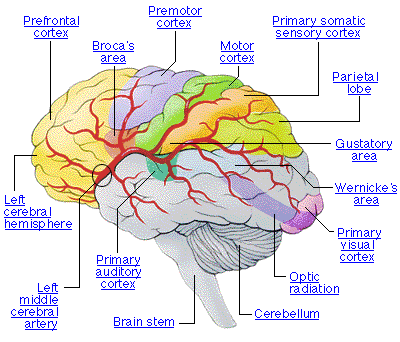
Some thing strange, uplifting and magical happens when your BRAIN
ama_brain_stroke_lev20_thebraineffectsstroke_01.gif

-- your 8 pound chunk of millions and millions of neurons actually TRUSTS the electronic and the hard-copy capturing system you're using for ideas. What is this miraculous abracadabra? Well, it's this: your brain ceases to spend 80-90% of its energy scrambling to keep track of the mess of things you have to do and reminding you to do them, and kind of takes a breather. In a sense, when you have a capturing system that your mind trusts will effectively capture a to do, your brain can "go out to lunch" with you still being "master of your fate, captain of your soul". You experience the "satori" that Zen masters speak of, or the epiphanic state cherished by James Joyce. You, in a sense, get a whole smarter, a hell of a lot more clearer, infinitely more peaceful, get much more done, all effortlessly. In short, having an actionable capturing device that your mind trusts, is frickin' awesome!

After scouring Productivity Boards, Reading and rereading GTD, and Reading Numerous Mac-Related email and productivity articles, I've cultivated a lot of productivity idiosyncratic tricks and tips to finally write my own Tome of Producitivity. I've spent the last 6 months trying out various GTD Apps, Productivity apps, and methods. Including, staying organized with:

Mac Desktop Folders
Google Notebooks
Yojimbo
OmniFocus
FileMaker Pro
iGTD
Ready-Set-Do
iCal Tasks
Remember the Milk Task Lists
Devonthink
Gmail
And Others!

My review of those! They all suck! You can suck it GTD-apps!! Well, okay, maybe not ALL of them, but most of them. And it's essential to note that you have to use immense selectivity to find a sytem that works for you and use the least amount of apps as possible. Secondly, you should NEVER EVER just dump all your todos, waiting fors, account info etc into a program. EVER! Then you find out that the program is limited and you're screwed. Always start with text files and once after a few months you notice many patterns you can create custom-tailored scripts for executing those patterns, or if a program absolutely targets that productivity pattern, you can use. Just because a program is freeware or shareware does not mean should immediately start using that. I made poor judgment call and really screws up your life, creating excess chaos. Bottom-line: for the first few months of organizing your life, use the LEAST amount of technology as possible (i.e. ZERO gtd apps). You've got to become aware of all the variables you deal with on a regular basis for your own productivity, before you even consider throwing in the always-present variables of some other designer for whom his or her program worked. Using GTD apps write off the bat without even aware of the patterns of your own tasks is like trying to bake a cake and then going out and buying every kind of cooking utensil for every type of cuisine. You'll end up with "woks" and "casserole dishes" and "sushi knives" and "broilers" when you just need to a bake a cake. What I'm saying is, until you're aware of your own productivity patterned "ingredients", you don't know what kind of "cooking tools" (applications) you'll need to get it done. So for the first few months of your productivity transformation, keep it simple people, bake from scratch. This same rule of thumb in other words is "if you can't organize yourself without an application" the application won't enable you to stay organized. A productivity app should ONLY do productivity patterns and actions that you normally do, with a much more expedited process.

However, I must give credit to those brilliant people of those apps and articles. In each productivity experiment I learned numerous invaluable gems for staying organized, and productivity authors from David Allen to Merlinn Man, to Macworld authors helped plant uplifting and aligning "seeds" for productivity. What follows is the distillation of all the good, minus all the crap. while The entire entire of dumping all of my todos in a program that confuses and holds all of my actionables is so absurd and I've learned from experience that it just slows you down, so I'm going all Old School all "Classic", baby. Here's the Details of my Productivity System.

Disclaimer! I don't encourage you to directly "port in" my productivity system, but hopefully tweak and adjust your own by generating scope of another style of system.

Apps I use for productivity:

quicksilver.png

Quicksilver -- The most essential for navigating between tasks. This application has wu wei productivity written all over it.

edit April 6, 2009 -- 2:05 PM
However, quicksilver has been recently very buggy and I've found it's complicated my life more than simplify it. So far now, quicksilver is out. You end up spending too much time using quicksilver instead of access things you need. It has great potential because it's not so much an "app" (we don't want organizational apps) as a service, but it's almost too app-like.

mail-large.png

Apples' Mail.App -- IMAPPED from gmail you get the benefit of gmail with the simplicity and elegance of Apple's brilliant design.

edit April 6, 2009 -- 2:07 PM
Gmail straight in webmail is perfectly fine. It's the same thing if it's imapped, if you access it in Mail.app.

images.jpeg

edit April 6, 2009 -- 8:58 PM write room is obsolete. no longer necessary. Textedit is fine, but most all docs are online google docs now so accessible to all iphone, laptop, and desktop simul.

Write Room -- The most essential for holding and containing tasks. This one's a a little strange because it's just a text editor. That's right. I've learned that all the fancy "labels" and "contexts" is a load of crap because all non-errand tasks occur in one context (on my mac) and all errand tasks I keep on my iPhone. You don't create a context called "Email"! NO! That's so asininely indirect and misdirecting it's hilarious. Instead, you just start an empty email-body draft in Mail.app. The key behind just using text files is modularity and mobility. If you're using some sophisticated and overly bloated productivity app (and they're all overbloated) what happens when you want to migrate to a different or better program? You're screwed! Developing an organization method within the simplicity and elegance of a Text file gives you 100% control over your system (unlike productivity apps which never offer 100% control because there's always some nuance feature not built into the program that you want it to do). Additionally, using pure text files, you get acquainted with patterns in your tasks and ideas and then can go advanced and create scripts to deal with those or patterns with your own sub-system.

images-1.jpeg

TextExpander

edit April 6, 2009 -- 8:58 PM. Expander program still useful, typeIt4Me for the win. Much better than textexpander, and implementing 3-4 generic email responses would be massive time-saver, but ultimately difficult to do. Date and other simple expanders are grea though.

I've taken the liberty of listing some tricks for keeping yoursoft-copy text file of any kind (@Ideas, @Tasks, @Waiting-For, whatever) instantaneously navigatable (no loading delays).

1. Short-hand name computer program contexts. Because about 70% of all my "contexts" revolve around not actual spaces to do things (home, office, errands, etc.) but actual computer applications, I found a lot of David Allen's "contexts", frankly, pretty unnecessary, superfluous, and dumb. However, the idea of setting contexts for actions itself (David's idea) had utter brilliance written all over it. The solution: why not list applications as the actual contexts?! The idea made so much sense to me I did just that. Therefore, the gist of my @Ideas (or @Tasks) file holds something like the following contexts:


Quicken -- receipts to add, financial ideas to process

edit April 6, 2009 -- 9:00 PM quicken is obsolete, no need for extensive receipt processing.

Youtube -- messages to send, things to view, updates to make to my channel
Facebook
Safari -- sites to
Mail.app -- organizational methods to add, folders to make, even emails to write (no one writes an email outside of the CONTEXT of an email app be it webmail, Mail.app, thunderbird, etc. so just categorizing something in the context of "email' is simply missing hte picture and missing a huge step in the "context' concept. "Email" is not a context, people! Good god! All these productivity apps are so stupid! Entourage or Mail.app (or yoru email program of your choosing) is a context!


images-2.jpeg

edit April 6, 2009 -- 2:07 PM I no longer use iPhoto for album organization. I label the photos with such a meticulous system that adding the extra app overcomplicates it. With my photo labelling system, you have profound organization just within the finder. Remember, the Finder is an AMAZING app, too. Pathfinder is great because they so much aren't apps. We're eliminating excessive apps.

iPhoto - albums to organize, photos to catalog

Anyways, you just list all of those contexts. Now whenever you need to jot down a note for adjusting, for example, your organizing system for email folders, just hit command-f to bring up the find command and type the first few letters of the application context you need, like "mail." to bring up mail. or "yout" to bring up the youtube ideas and tasks. So simple and intuitive but equally efficient, extensible, and fast.

The key variable here is that you can't use the word of any context in the actual sub-tasks or sub-ideas for that context or else you will find "mail.app" in countless places and not get to the set context category. Resolve this one of two ways. Prepend all application contexts with "@", shorthand your context names to something unique. The problem with prepending "@" is that you'll always have to have to start your searches with "@". So a good solution is just nicknaming your contexts so you always just search for the nickname. Youtube becomes Ytb. Mail.app becomes "Ma.". This definitely has the look and feel of a programmer's utilization of variables, but you can't do a search and have multiple instances of the context name pop up. There must exist one and only one occurence of a context name in each of your soft-copy capturing files (@ideas, @Tasks, @Waiting For).

edit April 6, 2009 -- 9:01 PM (@ideas, @Tasks, @Waiting For) are ALL obsolete. @ideas is unnecassry an idea you share in convos or in a journal you don't need a damn list for it. Tasks gets jotted down on your temp_things list. and waiting-for, definitely DO NOT have a waiting for list. That will make you insane. You ahve three types of waiting for:
web waiting-fors (forum responses, page responses, forum issues, questiosn on boards) that you put in a safari or firefox toolbar
email waiting fors (you can slap a WF gmail label on certain emails you want to track, simple)
Phone wiating fors (you simply write SENTMSG in notes (or SMSG or your own abbereviaton) and then can do a smart contacts folder searching for that keyword so that it automatically tracks those. So a quick check of the Apple Address Book smart folder in contacts, email WF label, and the firefox "oi" (I use "oi" for open issues, my web version of waiting-for) folder will give you scope and a closed loop on anything for which you're waiting for a reponse. NOTICE that NO LISTS were used in waiting for tracking!! It's a folder of the actual sites (web), search tag SENTMSG (contacts), or email label WF (for email). Never maike a WF list it will be too crazy and you'll spend 4-5 as much time tracking stuff on it than getting things done and responded too. Less lists!!


Why Do I Separate Ideas from Tasks?
This one is simple. You need different levels of capturing.
Year_Incoming notes is for EVERYTHING and whatever the hell you want to write. I shove dreams I had, angry thouhts, brilliant ideas, little journal tidbits, even the beginning of articles into YEAR_Incoming Notes

images-3.jpeg

Devonthink Pro -- You can use this for all reading.
edit April 6, 2009 -- 2:10 PM obsolete -- Using devonthink overcomplicates things. All reading can and should be done directly in your browser of preference (Firefox or Safari). having a seperate browser for web surfing and one for "web reading" is ridiculous and massively dangerously overcomplicates things. Don't use Devonthink. I currently have a reads, a-read, watch, a-watch as folders on the firefox toolbar, that's all you need. Simplicity, simplicity, simplicity!

images-4.jpeg

iPhone -- Why store errand-related, shopping-related tasks on a computer? You can't access your lists outside if you stored them on your computer;, and who the hell actually "prints up" they're grocery list or errands task list before they go out the door?! The idea of not putting errand-related tasks on something portable (like a pda) immediately is so unfathomably stupid, it's laughable. So store any non-mac, non-home tasks on your iPhone's Notes list, so you can just instantly delete and check it off when you accomplish it. I can't believe how idiotically neanderthal it is that programs like Omnifocus suggest you print up "errands". So then you're outside and you cross off "milk" off your list, then when you get home you have to cross if off your computer list again?!! The logic behind that programming has " mind-bogglingly dumb" written all over it. Consolidate all non-mac, non-home tasks on the portability device of your choosing, in this case, "iphone for me". iPhone apps are a Pandora's box of more productivity apps (stay tuned for this post).

I've developped all these little tricks to deal with any context using just those programs.

I think the biggest (and somewhat humorous) insight to using GTD productivity software is it feels good to be AWARE of all the cutting edge apps out there so you can see techniques that are utilized. Then, just DON'T USE the software! Implements discovries from tinkering with that other software into your own application or system. True, you may have to function a bit as a programmer, but for having the scope of all your ideas, journals, tasks, waiting-fors, and blog entries at your finger tips in one grasp with no lag delays, all consolidated and massively extensible. Well, that's just magic.


edit April 6, 2009 -- 2:11 PM
Basically this specific part is messy and infected with a lot of David Allen's GTD muck. Frankly GTD is too bloated of an organizational system; you take on a lot of crap you don't need if you use it. It has some great concepts but as a whole the system sucks. So I'm on the process of writing up details of my own system. For computers, it basically uses all online documents, almost all documents on hard drives are backups. It consolidates consolidates consolidates!! All like files. It gets all your outcome project files in one spot. My system really works, and it goes where GTD failed to go and takes you to place where you end up just jotting stuff down you need to do and doing it instead of all this WF, M-S (when the frickin hell am I ever going to look at a maybe-someday list to see what I maybe someday will do? That list is a bunch of crap), crap it just has a simple todos projects and you don't need seperate folders for project,s that's like kids r' us. I have one online file accessible from my phone, laptop, or desktoop that has things to do and if it's complex, an outline of how to accomplish it all in THE SAME ONE FILE. The file is organized into "computer" "videos" "books" projects because all outside tasks I keep on a ZenBe lists. So yeah, basically what i wrote last year is practically 80% obsolete and the new organizational system is much clearer, sharper, and most important -- SIMPLER!


7.17.2008

Productivity & Organizational Progress Suite 1: Intro Part 2


[2)Some solutions people have have just so much absence of logic and lack of practicality imbedded in them it's hilarious.] Cont...

I'm seriously thinking of submitting "Stupidest Productivity Ideas" to some kind of segment for the Jay Leno Show. I hear people rave and talk about how these "productivity systems" work so magically well, when they're really wrought with stupidity and inefficiency. One of my favorites of this category is Google Notebooks.

Laughing at other methods. Here's a "genius" method I've seen people raving over. What is with it with these people? I just start laughing at how much infuriation they create for themselves (and I've experienced it by trying out their system with my own tasks) with such idiotic systems! Here's a brainbuster: loading all your tasks and projects into numerous Google notebooks. Why this works: it doesnt'. Why this doesn't work: Endless reasons, but some important ones are: What do you do when you don't have internet access, genius? All of your tasks and projects are inaccessible. Never a state you should ever want to come across. Secondly, the loading delays: waiting and extra 5 seconds while google loads information for EVERY task I update? I don't think so, mabye if I was an 80 year-old grandmother who liked watching the "colors pop up" on the computer. Productivity needs to be electricity-like fast and google notebooks doesn't cut it. Finally, advertisements. Period. What kind of moron delights in seeing countless advertisements when he's trying to go into a zen-like mode of organization and productivity? There you have it, I dub "google notebooks for productivity" "mind-bogglingly dumb" because of Inaccessibility, Loading delays, and Distracting advertisements.

But it astonishes me how someone could not only deem such a "mind-bogglingly dumb" system not only "efficient" (when it's anything but) but worthy of sharing with others. I couldn't believe when that the author of that productivity post actually thought he was helping people providing obtuse methods.

Frank Addante, A brilliant start-up guru, whom I respect, suggests we learn how to make quick decisions and then as quickly as you effectively and swiftly make the best decisions you can, try to find out if that was a bad, poor, or good or excellent decision! Moving to california was definitely and excellent decision. Using google notebooks was a bad decision and going back to chicago last year was a pretty poor decision, but didn't have much choice in that one, that one was neutral. California uplifting decison.

Now, I'm making such a huge deal out of this because, frankly, I used about a month of my life up dealing with the daily infuriations with the idiotic google notebook method. I find all gmail sluggish, buggy iwth IMAP, and full of plain awful, but flaws. But I just blindly took that person's suggestion and "tried out" that google notebook system.

I think the most moralistic "fable" lesson here is stop listening to the advice and suggestions of others. If it's a suggestion so off-base from your own "doings" it will wreak havoc and not solve anythign and if it's close enough to how you operate then a suggestion to "keep doing what you're doing" is redundant! So advice is pretty pointless. You'll connect with what you need to by gathering more information and knowledge. Knowledge is not so much "power" as it a solution for generating massive clarity.

Also on that note. I'd almost much rather read about all these different systems while just using mine that works than go through the pain and anguish of trying out a system and having it falter.

While my system may not have perfection, it at the very least has perpetual accessibility, instantaneous (zero loading delays) updates, and of course zero advertising distractions. I won't go as far to say that my system is "mind-bogglingly intelligent", but in many respects it embodies everything the "google notebooks" system is not, the anti-google-notebook method, if you will.

Stay tuned for the next installment of the Productivity & Organizational (POP) Progress Suite.


Mailing List


Validate%20Your%20Life
Quantcast